Uploading Invoices
On our workforce app, https://mobile.munchinsights.com, you will be able to upload invoices.
Here are some best practices to follow:
-
Please try to upload multi-page invoices one by one (try not to have more than 1 multi-page invoices in the same upload)
-
We recommend uploading the invoices as they come so you don’t lose them.
-
-
Any corrections, please mark them down on the invoice
-
Feel free to also contact our team to help you edit manually if anything comes up
-
Uploading is simple, here is the step by step:
-
Login to mobile.munchinsights.com
-
You should be in “Invoice” page by default.
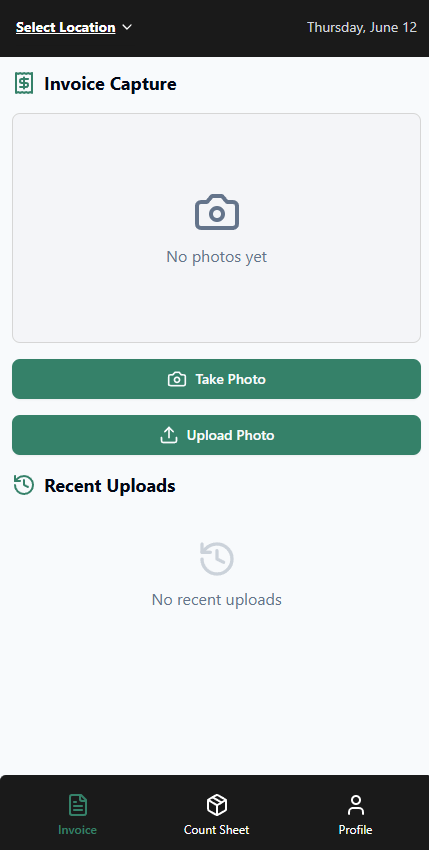
Here, you can either "take photo" or "upload photo" -
Once you have uploaded a photo, press confirm

-
Your invoice should be uploaded, and after 30 seconds, it will populate on Inventory Desktop. After 48 hours, it will be confirmed.