QuickBooks Desktop
Learn more how to properly set it up or troubleshoot common issues.
Introduction
We use Conductor as our QuickBooks Desktop integration provider. They charge per connection, so the most common way to set it up is to have a central QuickBooks instance open on your central QuickBooks server.
For any questions that are not answered on this page, you can search for answers in the official Conductor documentation: https://docs.conductor.is/help/faq/end-user-faq.
Setup Checklist
If you’re encountering issues, double check that:
-
QuickBooks Desktop is opened on your server.
-
Any popups should be closed.
-
Web Connector popup should be closed (click Hide). If you click “Hide” and it doesn’t close after 10 seconds, then go down the checklist
-
Intuit Sign-In: Intuit requires you to sign into your QuickBooks Desktop instance once in a while for security purposes.
-
Upgrades: Occasionally, QuickBooks Desktop will ask you to upgrade or not. We recommend updating, if possible.
-
-
All connections should have auto-run enabled.
-
Auto-run will the Web Connector popup feel laggy, but the popup should be closed anyways.
-
-
When all else fails, restart QuickBooks.
-
Otherwise, restart the server.
-
This is most likely needed when you need to update QuickBooks because it usually does not display the popup until you restart your server completely.
-
Logging into the Company File on Server
A quick fix is for you to log into the company file on the QuickBooks instance on the server directly and sync. Afterwards, you must close the company file or else you will prevent others from syncing with other company files.
Common Issues & Solutions
This section covers all of the common issues that you may encounter. You can find a more thorough list of potential errors and solutions in the official documentation here: https://docs.conductor.is/help/connection-errors/connection-not-active
QBWC1085: There was a problem with the log file
You may see a popup like:
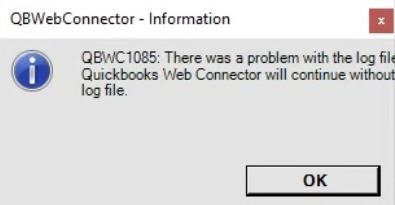
This is a tricky issue to fix, but you can do it in < 5 minutes by following this guide: https://docs.conductor.is/help/connection-errors/there-was-a-problem-with-the-log-file#solution-delete-the-web-connector-log-file
Sales Journals Not Auto-Synced
Go through the Setup Checklist. If that does not work, please contact support!
Your QuickBooks Desktop connection is not active. It was last active...
If you see this error when syncing journal entries, you should go through the Setup Checklist. If it still does not work, please contact support!